How to pay your bill online
Last updated September 30, 2024
Log in to your SunFund dashboard, open the Billings page, and select your most recent statement. Choose Pay via QR Ph, enter your details to generate a QR code, then scan it with GCash, Maya, or any QR Ph-enabled banking app to complete payment.
1. Login to Your Dashboard
Navigate to the Billings page after logging into your account.
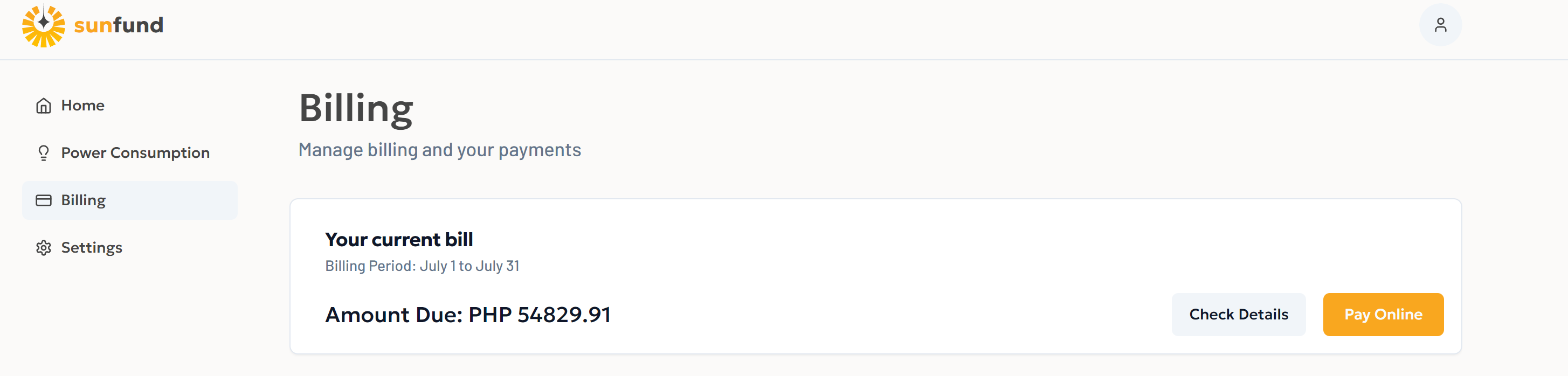
Billing Dashboard
2. Select Your Most Recent Billing
Find your most recent billing statement and press the Pay Online button.

Current Bill
3. Choose a Payment Method
Currently, only Pay via QR Ph is available. However, additional payment methods will be added soon. With QR Ph, you can pay using a mobile banking app or e-wallet of your choice.
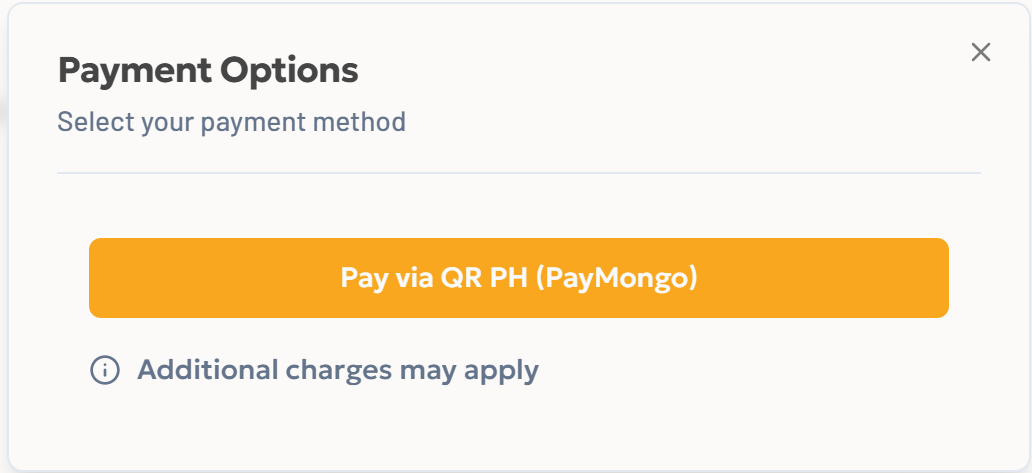
Choose your payment method
4. Redirect to Our Payment Partner
After selecting the payment method, you'll be redirected to a PayMongo page. Here, you'll see a breakdown of the total price and available payment options.To proceed, press the Scar Qr Ph code to pay button.
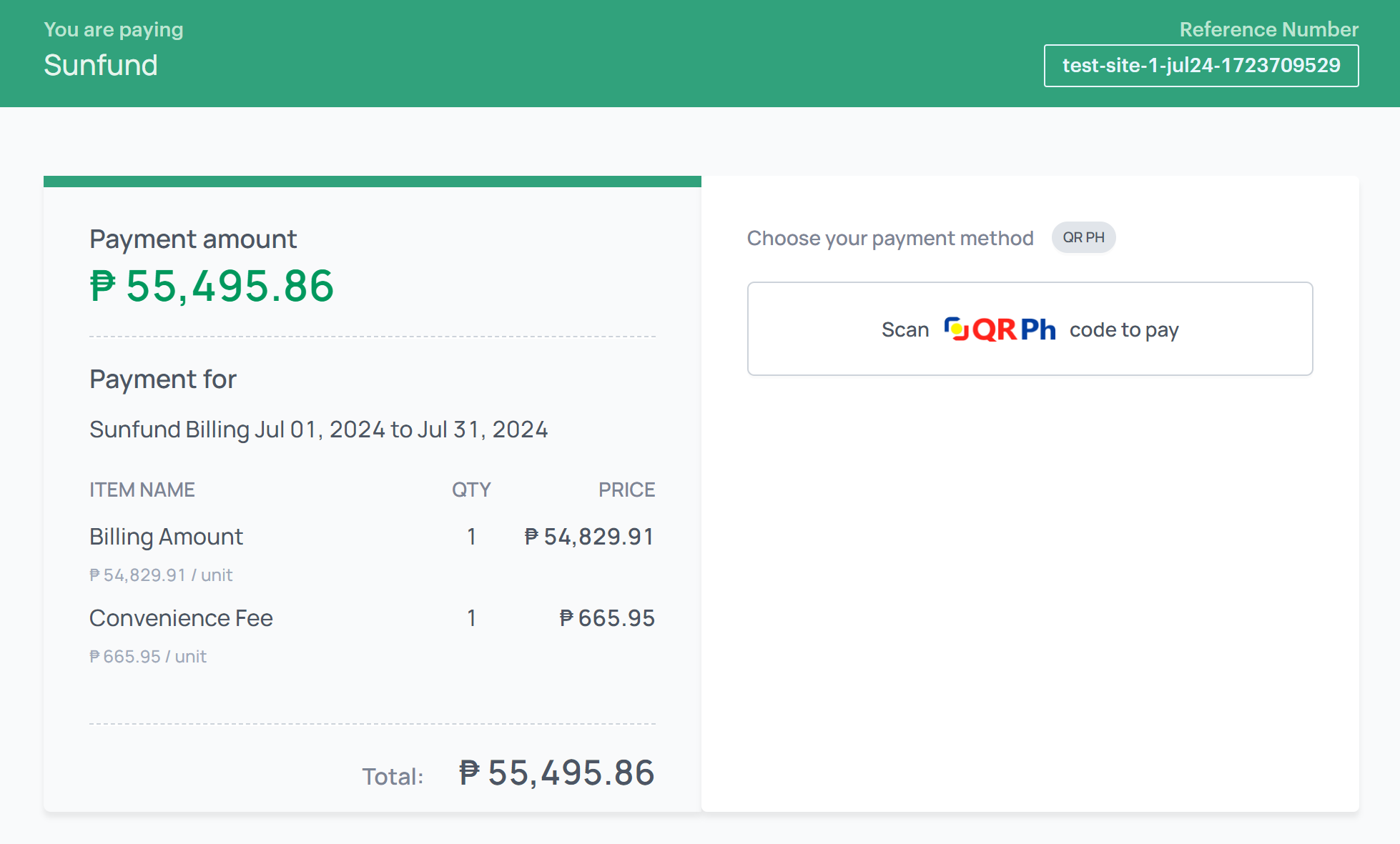
Paymongo page
5. Enter Your Customer Information
Provide your Name, Email Address, and Mobile Number. Once you've entered all the required information, the blue Get QR Code button at the bottom right will become clickable.
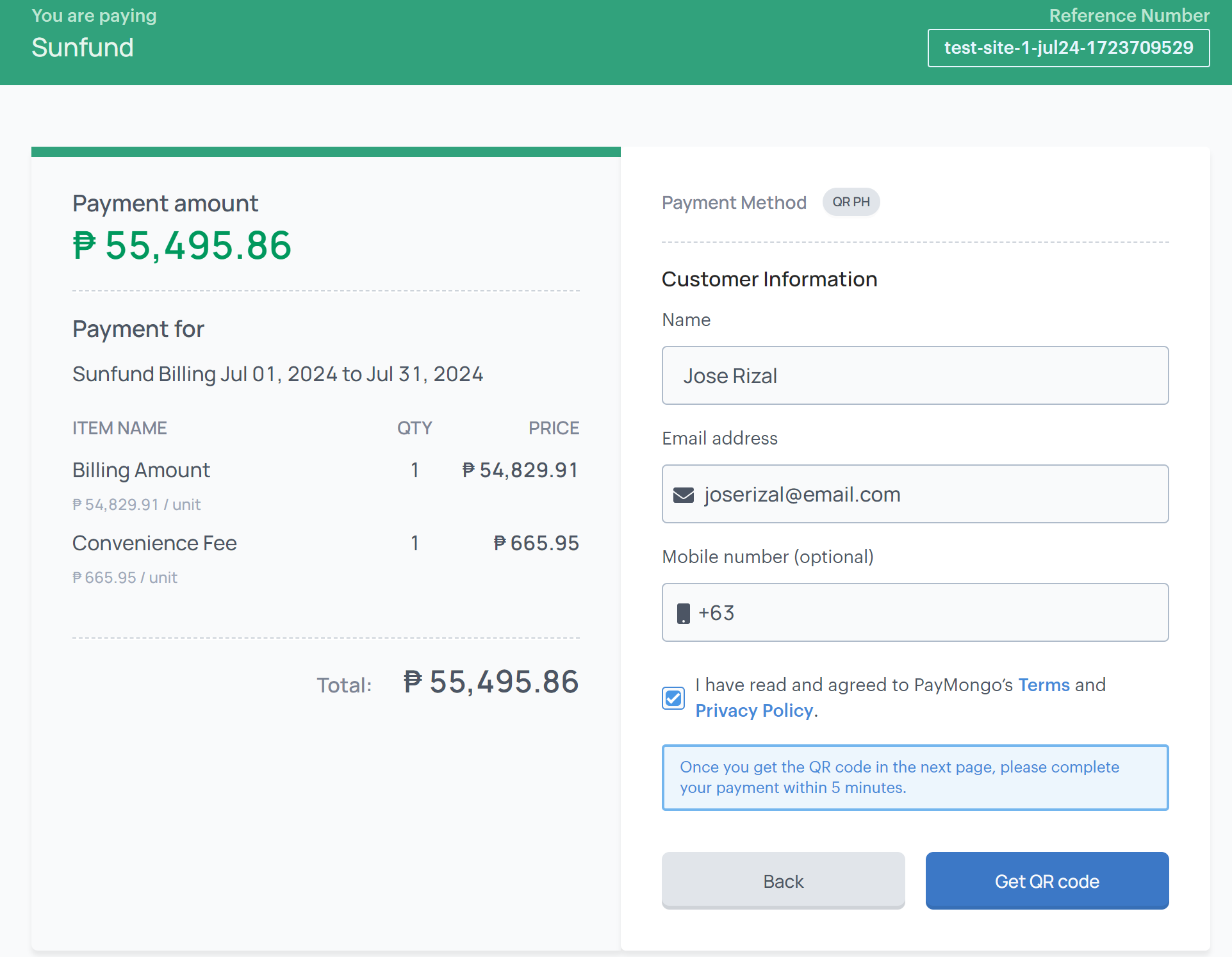
Enter your customer information
6. Generate QR Code
After clicking Get QR Code, a QR code will be generated. Use this code to pay via GCash, Maya, or any bank that supports QR Ph.
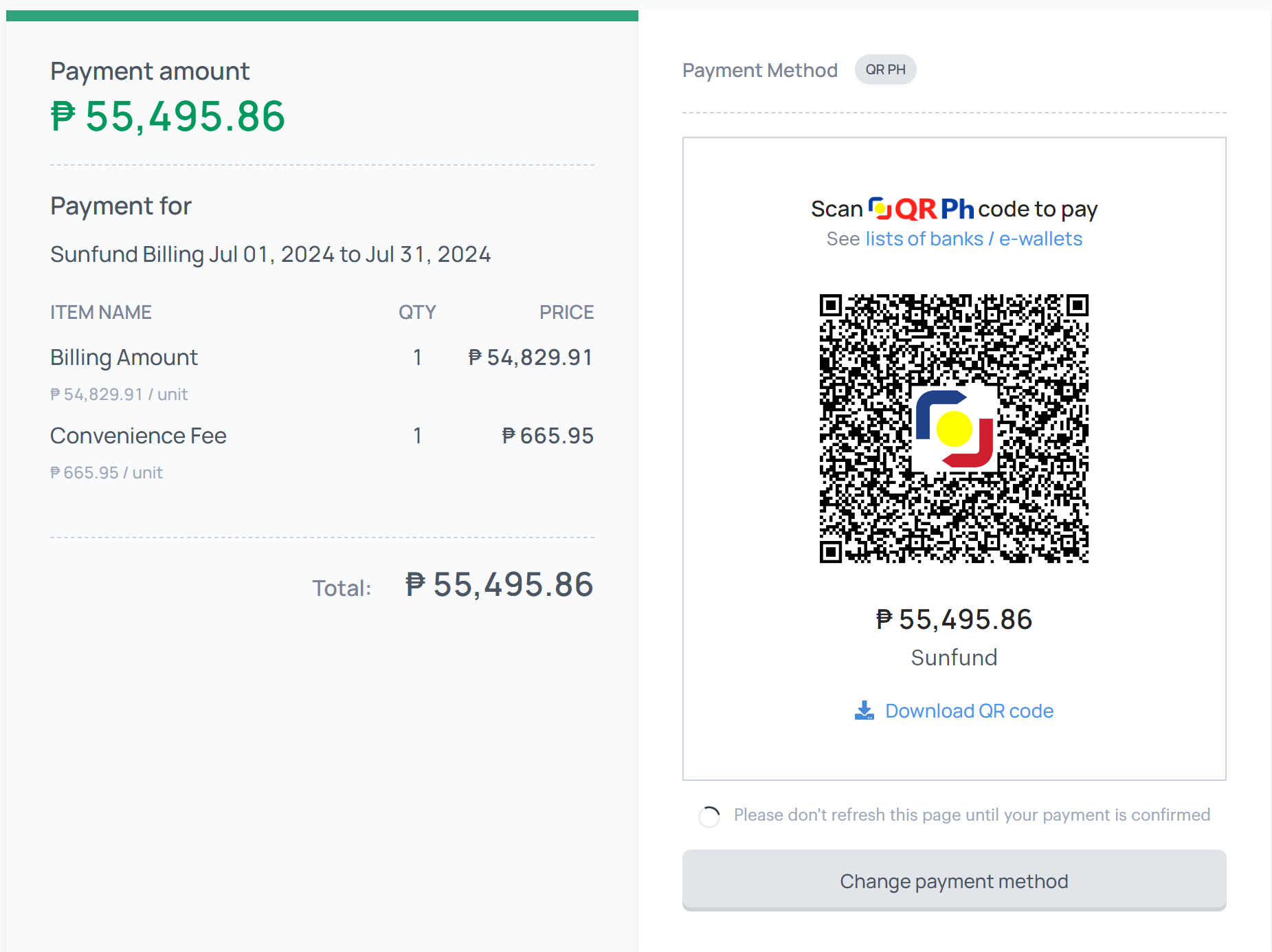
Generate QR Code
7. Complete Payment
Open the QR scanner in your chosen e-wallet or mobile banking app and scan the QR code displayed on your screen. Alternatively, you could also download the QR Code, and upload it to your chosen app. Once your payment is complete, you’ll be redirected back to the SunFund website, and the payment should appear on your Billings page. If the payment doesn’t reflect immediately, please wait a few moments and refresh the page.
Support
If you have any questions or need assistance, feel free to reach out to us:
- Email: info@sunfund.ph